Download All Products Free With Any Membership Plan

Latest Version

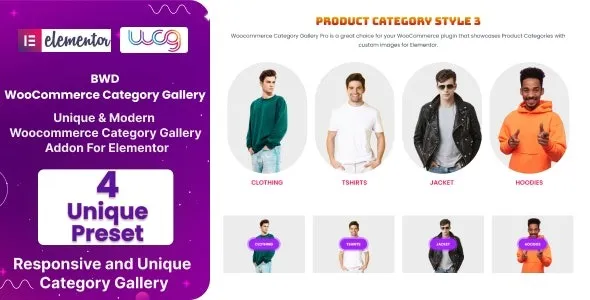
BWD WooCommerce Category Gallery Addon For Elementor

Buy This Single Latest Version From Here

BWD WooCommerce Category Gallery – Addon for Elementor
A powerful WordPress addon that lets you showcase WooCommerce product categories in stylish, interactive gallery layouts. It offers multiple formats, including grid, masonry, and carousel, with customizable colors, typography, hover effects, and dynamic category syncing. Fully responsive and lightweight, it’s ideal for e‑commerce stores, agencies, and businesses to highlight product collections, improve navigation, and create visually engaging category showcases.

Description

BWD WooCommerce Category Gallery – Addon for Elementor

BWD WooCommerce Category Gallery is a powerful WordPress addon for Elementor that helps you showcase WooCommerce product categories in stylish, interactive gallery layouts. It’s designed for online stores, agencies, and businesses that want to highlight product collections with engaging visuals and easy navigation.


🌐 Overview

  • Purpose: Display WooCommerce product categories in customizable gallery formats.
  • Audience: E‑commerce stores, agencies, freelancers, and businesses.
  • Integration: Works seamlessly with Elementor and WooCommerce.

🔑 Key Features

  • Category Showcase: Present product categories with images, titles, and descriptions.
  • Multiple Layouts: Grid, masonry, carousel, and creative gallery styles.
  • Customizable Styling: Control colors, typography, spacing, and hover effects.
  • Interactive Hover Effects: Smooth transitions and animations for engaging visuals.
  • Dynamic Content Support: Automatically pulls WooCommerce categories and updates with new ones.
  • Responsive Design: Optimized for mobile, tablet, and desktop.
  • Lightweight Performance: Fast loading galleries without slowing down your store.
  • Flexible Use Cases: Perfect for category landing pages, shop highlights, or promotional sections.

⚙️ How It Works

  1. Install & Activate: Add the addon to your WordPress site.
  2. Open Elementor: Access the WooCommerce Category Gallery widget.
  3. Choose Layout: Select grid, masonry, or carousel styles.
  4. Add Categories: Display WooCommerce categories with images and descriptions.
  5. Customize Styling: Adjust fonts, colors, hover effects, and animations.
  6. Publish: Showcase interactive category galleries on your store.

📊 Comparison Table

Feature Default WooCommerce BWD Category Gallery
Category Layouts Basic list/grid Grid, masonry, carousel, creative
Hover Effects Minimal Advanced animations
Dynamic Updates Limited Automatic category sync
Responsive Design Partial Fully optimized

⚠️ Considerations

  • Requires Elementor & WooCommerce: Works only with both installed.
  • Premium License: Advanced layouts and effects may require the Pro version.
  • Design Balance: Too many animations can distract from product focus.

✅ Best For

  • E‑commerce stores highlight product categories in engaging layouts.
  • Agencies & freelancers designing stylish online shops for clients.
  • Businesses promoting collections or seasonal categories.
  • Bloggers & creators running WooCommerce shops with visual appeal.

In short, BWD WooCommerce Category Gallery for Elementor is a versatile addon that transforms simple category listings into interactive, visually appealing galleries—ideal for boosting engagement and improving navigation in online stores.

Reviews

There are no reviews yet.

Only logged in customers who have purchased this product may leave a review.

🛠️ How to Install GPL Themes & Plugins from GPLFox.com

1. Download Your Theme or Plugin

  • Visit GPLFox.com and log in to your account.
  • Browse or search for the theme/plugin you want.
  • Click Download to get the .zip file onto your computer.

2. Install via WordPress Dashboard

  • Log in to your WordPress Admin Panel.
  • Go to:
    • ThemesAppearance > Themes > Add New > Upload Theme
    • PluginsPlugins > Add New > Upload Plugin
  • Click Upload, then select the .zip file you downloaded from GPLFox.
  • Press Install Now.

3. Activate the Theme or Plugin

  • Once installed, click Activate.
  • For themes: your site will immediately switch to the new design.
  • For plugins: the plugin will be enabled and ready to configure.

4. Configure Settings

  • Most premium themes/plugins include customization options.
  • Navigate to the theme’s Customizer or plugin’s Settings panel.
  • Adjust layouts, features, and integrations as needed.

5. Keep Files Updated

  • GPLFox provides updated versions regularly.
  • Re‑download the latest .zip from GPLFox and repeat the upload process to update your theme/plugin.

Tip for Users: Since GPL products don’t require license activation, you can use them right away after installation. Just make sure to keep them up to date for security and compatibility.

Need Hosting Solution ?