

Description
BWD Restaurant Price Menu – Addon for Elementor
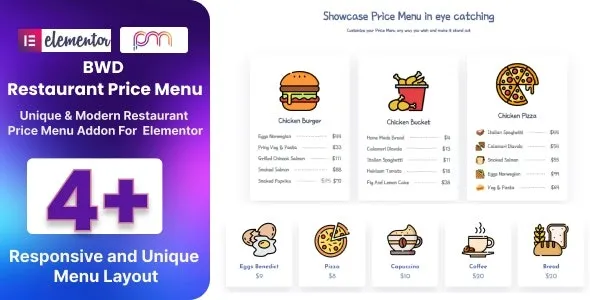
BWD Restaurant Price Menu is a stylish WordPress addon for Elementor that helps restaurants, cafés, bars, and food businesses create attractive, customizable price menus. With modern layouts, interactive hover effects, and flexible styling options, it’s designed to present food and drink items in a clear, engaging, and professional way that enhances customer experience and boosts conversions.
🌐 Overview
- Purpose: Showcase food and beverage items with prices in elegant menu layouts.
- Audience: Restaurants, cafés, bars, bakeries, food trucks, and catering services.
- Integration: Works seamlessly with Elementor’s drag‑and‑drop editor.
🔑 Key Features
- Multiple Menu Styles: Vertical, horizontal, grid, and creative layouts.
- Customizable Content: Add item names, descriptions, prices, and icons.
- Image Support: Include food or drink images for visual appeal.
- Interactive Hover Effects: Smooth transitions and animations to highlight items.
- Flexible Styling: Control colors, typography, spacing, and alignment.
- Category Options: Organize menus by starters, mains, desserts, or drinks.
- Responsive Design: Optimized for mobile, tablet, and desktop.
- Lightweight Performance: Fast‑loading menus without slowing down your site.
- Creative Use Cases: Perfect for restaurant websites, cafés, catering services, and online food ordering platforms.
⚙️ How It Works
- Install & Activate: Add the addon to your WordPress site.
- Open Elementor: Access the Restaurant Price Menu widget.
- Add Menu Items: Insert names, descriptions, prices, and images.
- Choose Layout: Select from multiple modern menu styles.
- Customize Styling: Adjust fonts, colors, hover effects, and animations.
- Publish: Display professional restaurant menus on your site.
📊 Comparison Table
| Feature | Default Elementor | BWD Restaurant Price Menu |
|---|---|---|
| Menu Layouts | Limited | Multiple creative options |
| Price Display | Basic | Fully customizable |
| Hover Effects | Minimal | Advanced transitions |
| Responsive Design | Partial | Fully optimized |
⚠️ Considerations
- Requires Elementor: Works only with Elementor installed.
- Content Accuracy: Ensure menu items and prices are updated regularly.
- Design Balance: Best used for structured menus, not excessive clutter.
✅ Best For
- Restaurants & cafés showcasing food and drink menus.
- Bars & bakeries presenting specialty items and prices.
- Catering services displaying packages and offerings.
- Food bloggers & creators designing recipe or menu sections.
In short, BWD Restaurant Price Menu for Elementor is a versatile addon that transforms ordinary food listings into stylish, interactive menus—ideal for restaurants, cafés, and catering services looking to present their offerings professionally and engagingly.










Reviews
There are no reviews yet.