Advance Seat Reservation Management for WooCommerce is a premium plugin that enables businesses to integrate a full seat booking and reservation system directly into their WooCommerce store. It’s ideal for cinemas, theaters, events, transportation services, and venues that require seat selection and management.
🌐 Overview
- Purpose: Add seat reservation functionality to WooCommerce products.
- Audience: Event organizers, transport companies, cinemas, theaters, and businesses offering seat‑based services.
- Integration: Works seamlessly with WooCommerce products, carts, orders, and WordPress posts.
🔑 Key Features
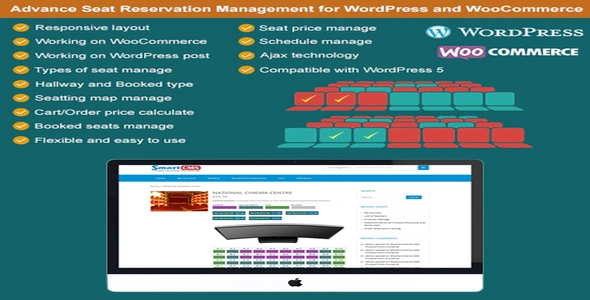
- Seat Profiles: Create seating layouts for rooms, halls, vehicles, or event spaces.
- Seat Types: Define categories like VIP, Standard, Free, or Hallway seats.
- Interactive Seat Selection: Customers can choose seats visually during checkout.
- Booking Management: Admins can mark seats as booked, reserved, or available.
- Multi‑Business Use: Suitable for cinemas, trains, airplanes, buses, theaters, conferences, and even beach chairs or sunbeds.
- COVID‑19 Version: Special configuration available for social distancing seat management.
- WooCommerce Integration: Seats are tied to WooCommerce products, ensuring smooth order and payment handling.
- Customizable Layouts: Flexible seat mapping for different venues and events.
⚙️ How It Works
- Install Plugin: Activate Advanced Seat Reservation Management in WordPress.
- Create Seat Profiles: Define seating arrangements for each venue or vehicle.
- Assign Seat Types: Add categories like VIP or Standard.
- Customer Booking: Shoppers select seats at the time of purchase.
- Order Management: WooCommerce handles payments and reservations automatically.
📊 Comparison Table
| Feature |
Advance Seat Reservation Plugin |
Default WooCommerce |
| Seat Selection |
Interactive visual layouts |
Not available |
| Seat Types |
VIP, Standard, Hallway, etc. |
Not available |
| Multi‑Venue Support |
Yes |
No |
| COVID‑19 Layouts |
Yes |
No |
| WooCommerce Integration |
Full |
Basic product only |
⚠️ Considerations
- Premium License Required: Advanced features are only available with the paid version.
- Setup Time: Requires careful configuration of seat maps for each venue.
- Compatibility: Works best with WooCommerce 3.0+ and modern WordPress themes.
✅ Best For
- Cinemas & Theaters needing seat booking systems.
- Transport Companies (bus, train, airline) offering seat reservations.
- Event Organizers managing conferences or concerts.
- Hospitality Businesses renting sunbeds, beach chairs, or similar seat‑based services.
In short, Advance Seat Reservation Management for WooCommerce transforms WooCommerce into a powerful seat booking system, allowing businesses to sell tickets with interactive seat selection, flexible layouts, and full order integration.
🛠️ How to Install GPL Themes & Plugins from GPLFox.com
1. Download Your Theme or Plugin
- Visit GPLFox.com and log in to your account.
- Browse or search for the theme/plugin you want.
- Click Download to get the
.zip file onto your computer.
2. Install via WordPress Dashboard
- Log in to your WordPress Admin Panel.
- Go to:
- Themes → Appearance > Themes > Add New > Upload Theme
- Plugins → Plugins > Add New > Upload Plugin
- Click Upload, then select the
.zip file you downloaded from GPLFox. - Press Install Now.
3. Activate the Theme or Plugin
- Once installed, click Activate.
- For themes: your site will immediately switch to the new design.
- For plugins: the plugin will be enabled and ready to configure.
4. Configure Settings
- Most premium themes/plugins include customization options.
- Navigate to the theme’s Customizer or plugin’s Settings panel.
- Adjust layouts, features, and integrations as needed.
5. Keep Files Updated
- GPLFox provides updated versions regularly.
- Re‑download the latest
.zip from GPLFox and repeat the upload process to update your theme/plugin.
✅ Tip for Users: Since GPL products don’t require license activation, you can use them right away after installation. Just make sure to keep them up to date for security and compatibility.

 1 × $2.99
 1 × $2.99