

Description
BWD Image Hotspot – Addon for Elementor
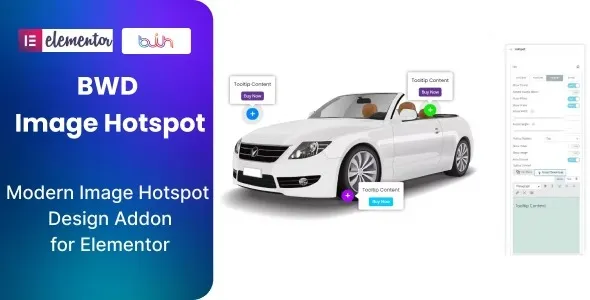
BWD Image Hotspot is a powerful WordPress addon for Elementor that lets you create interactive images with clickable hotspots. It’s perfect for agencies, businesses, educators, and e‑commerce stores that want to highlight specific parts of an image, provide tooltips, or link to additional content in a visually engaging way.
🌐 Overview
- Purpose: Add interactive hotspots to images for tooltips, links, or detailed information.
- Audience: Agencies, freelancers, businesses, educators, bloggers, and online shops.
- Integration: Works seamlessly with Elementor’s drag‑and‑drop editor.
🔑 Key Features
- Interactive Hotspots: Place clickable markers anywhere on an image.
- Tooltip Support: Show text, icons, or media when hovering over hotspots.
- Customizable Styling: Control colors, shapes, icons, and animations.
- Link Integration: Direct users to pages, products, or external URLs.
- Multiple Layouts: Choose from different hotspot styles and animations.
- Responsive Design: Optimized for mobile, tablet, and desktop.
- Lightweight Performance: Smooth interactions without slowing down your site.
- Flexible Use Cases: Perfect for product showcases, maps, infographics, tutorials, and educational content.
⚙️ How It Works
- Install & Activate: Add the addon to your WordPress site.
- Open Elementor: Access the Image Hotspot widget.
- Upload Image: Add any image (product, map, diagram, etc.).
- Place Hotspots: Position markers on specific areas of the image.
- Add Content: Insert tooltips, links, or icons for each hotspot.
- Customize Styling: Adjust fonts, colors, animations, and hover effects.
- Publish: Display interactive images with hotspots on your site.
📊 Comparison Table
| Feature | Default Elementor | BWD Image Hotspot |
|---|---|---|
| Hotspot Placement | No | Yes |
| Tooltip Support | Limited | Advanced options |
| Link Integration | Minimal | Full support |
| Responsive Design | Partial | Fully optimized |
⚠️ Considerations
- Requires Elementor: Works only with Elementor installed.
- Premium License: Advanced hotspot styles may require the Pro version.
- Design Balance: Too many hotspots can clutter the image.
✅ Best For
- Agencies & freelancers designing interactive client websites.
- Businesses & e‑commerce stores showcasing product details or features.
- Educators & trainers creating tutorials or interactive learning materials.
- Bloggers & creators adding engaging visuals to content.
In short, BWD Image Hotspot for Elementor is a versatile addon that transforms static images into interactive experiences—ideal for product showcases, maps, tutorials, and educational content.






Reviews
There are no reviews yet.