Latest Version

Buy This Single Latest Version From Here

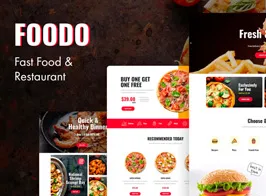
Foodo – Fast Food & Pizza Elementor Template Kit
A vibrant Elementor template kit designed for fast food restaurants, pizza shops, burger outlets, and quick‑service eateries. It includes pre‑built pages for home, about, menu, promotions, blogs, and contact sections, all optimized for responsiveness and mobile‑friendly performance. With bold layouts, global styles, and conversion‑focused elements like menu showcases, promotional offers, testimonials, and call‑to‑action blocks, Foodo helps restaurants quickly launch appetizing, professional websites. Perfect for fast food chains, pizza shops, and burger joints looking to attract customers and boost online orders.

Description

Foodo – Fast Food & Pizza Elementor Template Kit for WordPress

Foodo is a vibrant, appetizing Elementor template kit designed for fast-food restaurants, pizza shops, burger joints, and quick‑service eateries. It delivers bold, product‑focused layouts that highlight menus, promotions, online ordering, and customer testimonials. Built for WordPress, Foodo makes it easy to launch a professional food service website without coding.


🌐 Overview

  • Purpose: Build fast food and pizza websites with engaging, menu‑driven design.
  • Audience: Fast food restaurants, pizza shops, burger outlets, and quick‑service eateries.
  • Integration: Works seamlessly with WordPress and Elementor, requiring no extra premium plugins.

🔑 Key Features

  • Pre‑Built Pages: Includes home, about, menu, product detail, promotions, blog, and contact templates.
  • Menu Showcases: Highlight pizzas, burgers, sides, and beverages with appetizing layouts.
  • Responsive & Mobile‑Friendly: Optimized for smooth browsing and ordering across all devices.
  • Drag‑and‑Drop Editing: Easily customize layouts, colors, and content with Elementor.
  • Global Styles: Consistent typography and branding across all templates.
  • Promotions & Offers: Showcase discounts, combos, and seasonal deals.
  • Testimonials: Build trust with customer reviews and feedback.
  • Blog Integration: Share food stories, recipes, and restaurant updates.
  • Call‑to‑Action Blocks: Drive online orders, reservations, and inquiries with optimized CTAs.

⚙️ How It Works

  1. Install & Activate: Add Foodo via Template Kit Import.
  2. Import Templates: Load pre‑built layouts into your WordPress site.
  3. Customize Content: Replace demo text, images, and branding with your own.
  4. Publish: Launch a professional fast food or pizza website quickly.

📊 Comparison Table

Feature Standard Elementor Foodo Template Kit
Menu Layouts Generic Tailored for fast food & pizza
Promotions & Offers Limited Dedicated showcase sections
Online Ordering CTAs Basic Optimized for conversions
Testimonials Manual setup Built‑in templates

⚠️ Considerations

  • Requires Elementor to be installed.
  • Content replacement is necessary to personalize demo layouts.
  • Integration with WooCommerce or a food-ordering plugin may be needed for advanced ordering features.

✅ Best For

  • Fast food restaurants showcase menus and promotions.
  • Pizza shops are promoting combos and online orders.
  • Burger outlets are building modern food service websites.
  • Agencies creating restaurant websites for clients.

In short, Foodo – Fast Food & Pizza Elementor Template Kit for WordPress delivers bold, responsive, and menu‑focused layouts that help restaurants quickly launch professional websites and attract hungry customers.

Reviews

There are no reviews yet.

Only logged in customers who have purchased this product may leave a review.

🛠️ How to Install GPL Themes & Plugins from GPLFox.com


1. Download Your Theme or Plugin

  • Visit GPLFox.com and log in to your account.
  • Browse or search for the theme/plugin you want.
  • Click Download to get the .zip file onto your computer.

2. Install via WordPress Dashboard

  • Log in to your WordPress Admin Panel.
  • Go to:
    • ThemesAppearance > Themes > Add New > Upload Theme
    • PluginsPlugins > Add New > Upload Plugin
  • Click Upload, then select the .zip file you downloaded from GPLFox.
  • Press Install Now.

3. Activate the Theme or Plugin

  • Once installed, click Activate.
  • For themes: your site will immediately switch to the new design.
  • For plugins: the plugin will be enabled and ready to configure.

4. Configure Settings

  • Most premium themes/plugins include customization options.
  • Navigate to the theme’s Customizer or plugin’s Settings panel.
  • Adjust layouts, features, and integrations as needed.

5. Keep Files Updated

  • GPLFox provides updated versions regularly.
  • Re‑download the latest .zip from GPLFox and repeat the upload process to update your theme/plugin.

Tip for Users: Since GPL products don’t require license activation, you can use them right away after installation. Just make sure to keep them up to date for security and compatibility.

Need Hosting Solution ?
3