

Description
Apollo – Sticky Full Width HTML5 Audio Player Elementor Widget
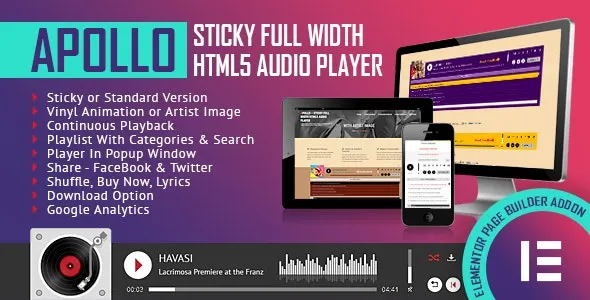
Apollo is a WordPress plugin that adds a modern, full‑width HTML5 audio player widget to Elementor, designed to stay sticky across your site for continuous playback. Perfect for podcasters, musicians, radio stations, and content creators, it delivers a sleek, customizable audio experience that keeps listeners engaged without interruption.
🌐 Overview
- Purpose: Provide a flexible, sticky audio player for Elementor websites.
- Audience: Podcasters, musicians, radio stations, bloggers, and businesses using audio content.
- Integration: Works seamlessly with Elementor’s drag‑and‑drop editor.
🔑 Key Features
- Sticky Full‑Width Player: Stays visible across pages for uninterrupted playback.
- HTML5 Audio Support: Play MP3, OGG, and other standard audio formats.
- Playlist Functionality: Add multiple tracks with ease and navigate them.
- Custom Styling: Control colors, buttons, progress bars, and typography with Elementor.
- Advanced Controls: Autoplay, loop, shuffle, volume, and track progress.
- Responsive Design: Optimized for mobile, tablet, and desktop.
- Lightweight & Fast: Built for smooth performance without slowing down websites.
- Dynamic Content: Pull audio files from posts, custom fields, or external sources.
⚙️ How It Works
- Install & Activate: Add Apollo to your WordPress site.
- Open Elementor, then access the Apollo widget.
- Upload Audio: Add single tracks or playlists.
- Customize Player: Adjust styling, controls, and sticky behavior.
- Publish: Deliver a seamless audio experience across your site.
📊 Comparison Table
| Feature | Default Elementor | Apollo – Audio Player |
|---|---|---|
| Sticky Full‑Width Player | No | Yes |
| Playlist Support | Limited | Full functionality |
| HTML5 Audio Formats | Basic | Full support |
| Custom Styling | Minimal | Advanced controls |
| Responsive Design | Partial | Fully optimized |
⚠️ Considerations
- Elementor Required: Works only with Elementor installed.
- Manual Setup: Audio files must be uploaded or linked.
- Premium License: Some advanced features may be Pro‑only.
✅ Best For
- Podcasters delivering episodes with continuous playback.
- Musicians & bands showcasing albums or playlists.
- Radio stations stream live or recorded shows.
- Businesses & educators adding audio guides or lessons.
In short, Apollo – Sticky Full Width HTML5 Audio Player Elementor Widget transforms your website into a professional audio hub, offering customizable, responsive, and uninterrupted playback for podcasts, music, and more.







Reviews
There are no reviews yet.