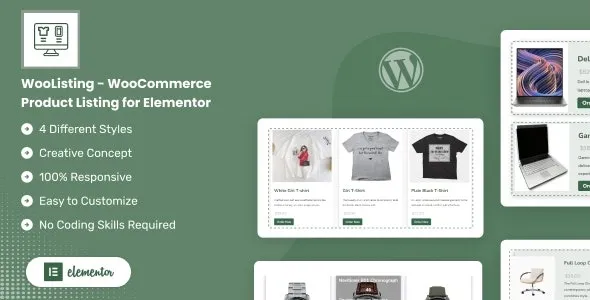
WooListing – WooCommerce Product Listing for Elementor
WooListing is a powerful Elementor addon designed to showcase WooCommerce products with style, flexibility, and ease. Built for online stores, marketplaces, and product‑driven websites, WooListing provides advanced listing layouts, customizable filters, and dynamic styling options to create engaging product displays that boost sales and enhance user experience.
🌟 Key Features
Product Listing Layouts
- Multiple grid, list, and masonry layouts for product showcases.
- Customizable columns, spacing, and alignment.
- Responsive design optimized for mobile, tablet, and desktop.
Advanced Filtering & Sorting
- AJAX‑powered product filters for categories, tags, and attributes.
- Search and sorting options for better navigation.
- Dynamic pagination and load‑more functionality.
Customization & Styling
- Elementor compatibility for drag‑and‑drop editing.
- Control over colors, typography, and hover effects.
- Custom badges, sale labels, and product highlights.
Product Showcase Tools
- Featured product sections with hero layouts.
- Quick view popups for instant product previews.
- Wishlist and compare integration for enhanced shopping experience.
Performance & Compatibility
- Lightweight code optimized for speed and SEO.
- Works seamlessly with WooCommerce and Elementor Pro.
- Translation‑ready for multilingual stores.
⚡ Why Choose WooListing?
WooListing is more than just a product listing addon—it’s a complete toolkit for building professional WooCommerce stores with Elementor. Its flexible layouts, advanced filters, and modern styling options make it ideal for shop owners, agencies, and developers who want to deliver a polished, user‑friendly shopping experience.
📋 Quick Setup Checklist
- Install and activate WooListing.
- Open Elementor and add WooListing widgets to your pages.
- Customize layouts, filters, and styling to match your brand.
- Enable quick view, wishlist, or compare features.
- Publish your product listings and start selling with style.
🛠️ How to Install GPL Themes & Plugins from GPLFox.com
1. Download Your Theme or Plugin
- Visit GPLFox.com and log in to your account.
- Browse or search for the theme/plugin you want.
- Click Download to get the
.zip file onto your computer.
2. Install via WordPress Dashboard
- Log in to your WordPress Admin Panel.
- Go to:
- Themes → Appearance > Themes > Add New > Upload Theme
- Plugins → Plugins > Add New > Upload Plugin
- Click Upload, then select the
.zip file you downloaded from GPLFox. - Press Install Now.
3. Activate the Theme or Plugin
- Once installed, click Activate.
- For themes: your site will immediately switch to the new design.
- For plugins: the plugin will be enabled and ready to configure.
4. Configure Settings
- Most premium themes/plugins include customization options.
- Navigate to the theme’s Customizer or plugin’s Settings panel.
- Adjust layouts, features, and integrations as needed.
5. Keep Files Updated
- GPLFox provides updated versions regularly.
- Re‑download the latest
.zip from GPLFox and repeat the upload process to update your theme/plugin.
✅ Tip for Users: Since GPL products don’t require license activation, you can use them right away after installation. Just make sure to keep them up to date for security and compatibility.