Latest Version

Synopter – Weather for Elementor

Buy This Single Latest Version From Here

Synopter – Weather for Elementor
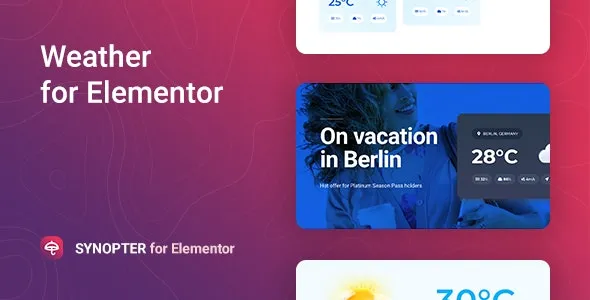
A premium WordPress plugin that integrates real‑time weather forecasts directly into Elementor websites. It lets you display current conditions, temperature, humidity, wind speed, and multi‑day forecasts using customizable widgets styled with Elementor controls. With support for geolocation, multiple weather APIs, responsive layouts, and multilingual compatibility, Synopter makes it easy to add accurate, engaging weather information to travel blogs, local business sites, event pages, and community portals.

Description

Synopter – Weather for Elementor

The Synopter – Weather for Elementor plugin is a premium extension that integrates real‑time weather data directly into WordPress websites built with Elementor. It allows site owners to display accurate, location‑based forecasts in customizable widgets, making it ideal for travel blogs, local business sites, event organizers, and community portals.


🌐 Overview

  • Purpose: Provide live weather information through Elementor widgets.
  • Audience: WordPress site owners, agencies, and developers needing weather display features.
  • Integration: Works seamlessly with Elementor and supports multiple weather APIs.

🔑 Key Features

  • Real‑Time Weather Data: Show current conditions, temperature, humidity, wind speed, and forecasts.
  • Location‑Based Forecasts: Display weather by city, region, or user’s geolocation.
  • Customizable Widgets: Style weather blocks using Elementor controls to match the site’s branding.
  • Multi‑Day Forecasts: Present upcoming weather for several days in advance.
  • Icon & Layout Options: Choose from a range of weather icons, formats, and layouts.
  • Responsive Design: Optimized for mobile, tablet, and desktop.
  • API Integration: Connect to reliable weather data providers for accurate updates.
  • Multilingual Support: Compatible with translation plugins for global audiences.

⚙️ How It Works

  1. Install & Activate: Add Synopter to your WordPress site.
  2. Configure API: Connect to a weather data provider.
  3. Add Elementor Widget: Insert weather blocks into pages or templates.
  4. Customize Design: Adjust colors, icons, and layouts with Elementor controls.
  5. Publish: Visitors see live weather updates tailored to your chosen location.

📊 Comparison Table

Feature Default Elementor Synopter – Weather for Elementor
Weather Display No Yes
Location Forecasts No Yes
Multi‑Day Forecasts No Yes
Customizable Widgets Limited Full
API Integration No Yes

⚠️ Considerations

  • API Key Required: Needa s connection to a weather service provider.
  • Accuracy Depends on Provider: Data quality varies by API source.
  • Setup Needed: Requires configuration for location and styling.

✅ Best For

  • Travel blogs showcasing destination weather.
  • Local businesses such as hotels, restaurants, and outdoor venues.
  • Event organizers need weather updates for attendees.
  • Community portals providing local forecasts.

In short, Synopter – Weather for Elementor adds real‑time, customizable weather widgets to WordPress sites, helping businesses and creators deliver accurate, engaging forecasts directly within Elementor layouts.

Reviews

There are no reviews yet.

Only logged in customers who have purchased this product may leave a review.

🛠️ How to Install GPL Themes & Plugins from GPLFox.com

1. Download Your Theme or Plugin

  • Visit GPLFox.com and log in to your account.
  • Browse or search for the theme/plugin you want.
  • Click Download to get the .zip file onto your computer.

2. Install via WordPress Dashboard

  • Log in to your WordPress Admin Panel.
  • Go to:
    • ThemesAppearance > Themes > Add New > Upload Theme
    • PluginsPlugins > Add New > Upload Plugin
  • Click Upload, then select the .zip file you downloaded from GPLFox.
  • Press Install Now.

3. Activate the Theme or Plugin

  • Once installed, click Activate.
  • For themes: your site will immediately switch to the new design.
  • For plugins: the plugin will be enabled and ready to configure.

4. Configure Settings

  • Most premium themes/plugins include customization options.
  • Navigate to the theme’s Customizer or plugin’s Settings panel.
  • Adjust layouts, features, and integrations as needed.

5. Keep Files Updated

  • GPLFox provides updated versions regularly.
  • Re‑download the latest .zip from GPLFox and repeat the upload process to update your theme/plugin.

Tip for Users: Since GPL products don’t require license activation, you can use them right away after installation. Just make sure to keep them up to date for security and compatibility.


Need Hosting Solution ?
Shopping cart3
Manggis – Creative Portfolio and Blog Theme
Manggis – Creative Portfolio and Blog ThemeUSD2.99
Multi Currency Pro for WooCommerce
Multi Currency Pro for WooCommerceUSD2.99
Total
USD8.97
Continue shopping
3