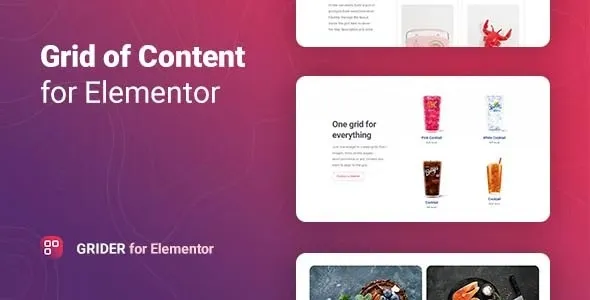
Grider – Grid of Content and Products for Elementor
Grider is a WordPress plugin that extends Elementor with advanced grid layouts for showcasing content, products, portfolios, or blog posts in a clean, organized, and visually engaging way. It’s designed for e‑commerce stores, agencies, bloggers, and businesses that want to present items in structured grids with full customization and responsive design.
🌐 Overview
- Purpose: Display content and products in customizable grid layouts.
- Audience: Online shops, agencies, bloggers, and businesses.
- Integration: Works seamlessly with Elementor’s drag‑and‑drop editor.
🔑 Key Features
- Flexible Grid Layouts: Masonry, classic, and modern grid styles.
- Content Types: Showcase products, blog posts, portfolios, or custom content.
- WooCommerce Integration: Display product grids with add‑to‑cart buttons and category filters.
- Custom Styling: Control spacing, colors, fonts, hover effects, and animations.
- Dynamic Content Support: Pull items from posts, products, or custom fields.
- Sorting & Filtering: Add category filters, tags, or search options to make navigation easier.
- Responsive Design: Optimized for mobile, tablet, and desktop.
- Lightweight & Fast: Built for smooth performance without slowing down websites.
⚙️ How It Works
- Install & Activate: Add Grider to your WordPress site.
- Open Elementor:Aand Accessthe GGridderwidget.
- Choose Content Source: Select products, posts, or custom items.
- Customize Layouts: Adjust grid style, spacing, and hover effects.
- Publish: Display structured, interactive grids that engage visitors.
📊 Comparison Table
| Feature |
Default Elementor |
Grider Plugin |
| Grid Layouts |
Limited |
Masonry, classic, modern |
| WooCommerce Support |
Basic |
Full product grid integration |
| Sorting & Filtering |
No |
Yes |
| Dynamic Content |
Partial |
Full support |
| Responsive Design |
Partial |
Fully optimized |
⚠️ Considerations
- Elementor Required: Works only with Elementor installed.
- Manual Setup: Content sources must be configured.
- Premium License: Some advanced layouts may be Pro‑only.
✅ Best For
- E‑commerce stores showcase product catalogs.
- Agencies & designers presenting portfolios.
- Bloggers are organizing posts in stylish grids.
- Businesses displaying services or case studies.
In short, Grider – Grid of Content and Products for Elementor helps you present content and products in customizable, responsive grids, making your website more organized, engaging, and professional.
🛠️ How to Install GPL Themes & Plugins from GPLFox.com
1. Download Your Theme or Plugin
- Visit GPLFox.com and log in to your account.
- Browse or search for the theme/plugin you want.
- Click Download to get the
.zip file onto your computer.
2. Install via WordPress Dashboard
- Log in to your WordPress Admin Panel.
- Go to:
- Themes → Appearance > Themes > Add New > Upload Theme
- Plugins → Plugins > Add New > Upload Plugin
- Click Upload, then select the
.zip file you downloaded from GPLFox. - Press Install Now.
3. Activate the Theme or Plugin
- Once installed, click Activate.
- For themes: your site will immediately switch to the new design.
- For plugins: the plugin will be enabled and ready to configure.
4. Configure Settings
- Most premium themes/plugins include customization options.
- Navigate to the theme’s Customizer or plugin’s Settings panel.
- Adjust layouts, features, and integrations as needed.
5. Keep Files Updated
- GPLFox provides updated versions regularly.
- Re‑download the latest
.zip from GPLFox and repeat the upload process to update your theme/plugin.
✅ Tip for Users: Since GPL products don’t require license activation, you can use them right away after installation. Just make sure to keep them up to date for security and compatibility.

 1 × $2.99
 1 × $2.99